 yoannchb-pro
MoodleGPT v1.0.3
This extension allows you to hide CHAT-GPT in a Moodle quiz. You just need to enter the code configured in the extension on the keyboard and then click on the question you want to solve, and CHAT-GPT will automatically provide the answer. However, one needs to be careful because as we know, CHAT-GPT can make errors especially in calculations.
Chrome Webstore
I'm actually waiting for a review of my extension. It should be available in some days.
Summary
- MoodleGPT v1.0.3
Disclaimer !
I hereby declare that I am not responsible for any misuse or illegal activities carried out using my program. The code is provided for educational and research purposes only, and any use of it outside of these purposes is at the user's own risk.
Donate
Will be a pleasure if you want to support this project :)

Update
See changelog
MoodleGPT don't complete my quiz ?
If MoodleGPT cannot complete one of your moodle quiz please provide the html code of the page. It will help us to add it in the futur version of MoodleGPT ! Check the TODO to see what is comming in the futur version.
Set up
NOTE: This extension only works on Chromium-based browsers like Edge, Chrome, etc. Unfortunately, Firefox requires a click on the extension, which is not very discreet.

Go to "Manage my extensions" on your browser, then click on "Load unpacked extension" and select the "extension" folder. Afterwards, click on the extension icon and enter the apiKey obtained from openai and enter a code that will activate the extension on your moodle page. Finally, click on the reload button next to model (it should give you the last ChatGPT version, otherwise enter it by your self) and click on the save button (The extension need to be configured before entering the moodle quiz).
Inject the code into the moodle
You just need to enter on the keyboard the code you have set into the extension and click on the question you want to solve.
Remove injection
Type back the code on the keyboard and the code will be removed from the current page.
Mode

- Autocomplete: The extension will complete the question for you.
- Clipboard: The response is copied into the clipboard.
- Question to answer: The question is converted to the answer and you can click on it to show back the question (or show back the answer).

Settings

-
Api key: the openai api key.
-
Code: code that you will need to inject/remove the code.
-
GPT Model: the gpt model you want to use. You can click on the reload button to get the latest version of available gpt model for your account but you need to enter the api key first.
-
Cursor indication: show a pointer cursor and a hourglass to know when the request is finished.
-
Title indication: show some informations into the title to know for example if the code have been injected.

-
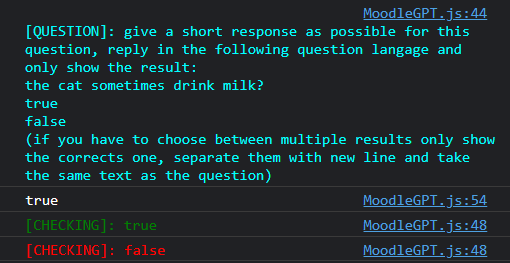
Console logs: show logs into the console.
-
Request timeout: if the request is too long it will be abort after 15seconds.
-
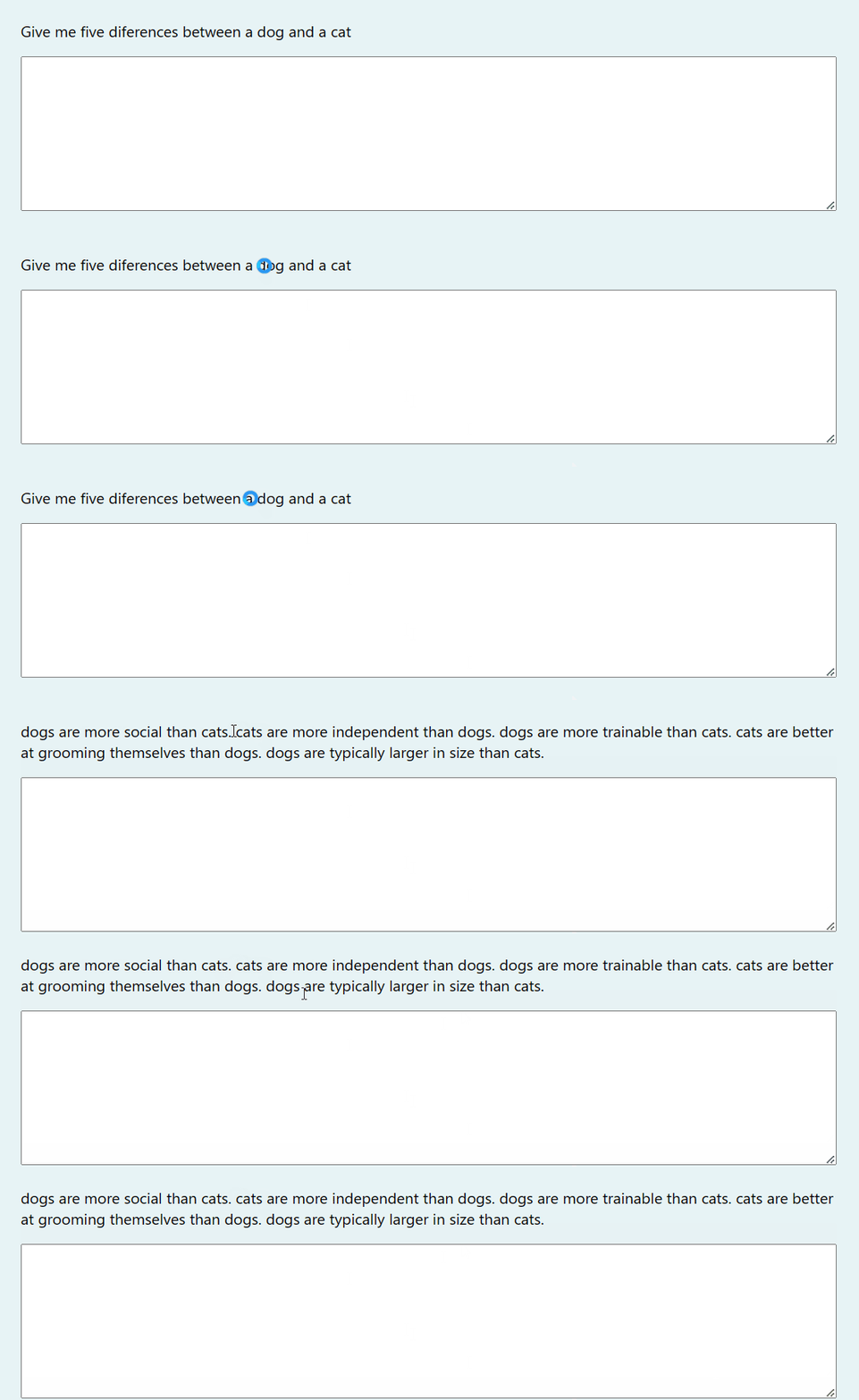
Typing effect: create a typing effect for text. Type any text and it will be replaced by the correct one. If you want to stop it press Backspace key.

-
Mouseover effect: you will need to hover (or click for select) the question response to complete it automaticaly.


-
Infinite try: click as much as you want on the question (don't forget to reset the question).


Internal Features
Support table
Table are formated from the question to make it more readable for CHAT-GPT. Example of formatted table output:
| id       | name  | birthDate  | cars |
----------------------------------------
| Person 1 | Yvick | 15/08/1999 | yes  |
| Person 2 | Yann  | 19/01/2000 | no   |
Supported questions type
Select

Put in order question

Resolve equation

One response (radio button)

Multiples responses (checkbox)

True or false

Number

Text

What about if the question can't be completed ?
To know if the answer has been copied to the clipboard, you can look at the title of the page which will become "Copied to clipboard" for 3 seconds.

Test
To test the code, you can run the index.html file located in the "test/fake-moodle" folder. Or a better solution is to install moodle locally.